


A step-by-step guide to installing the Metaplay SDK, integrating it into your Unity project, spinning up a local game server, and testing with simulated players — all completely free.
What You'll Set Up
By the end of this guide, you'll have a fully working Metaplay development environment running locally on your machine. This includes:
- The Metaplay SDK integrated into your Unity project
- A local game server running with a single command
- The Metaplay LiveOps Dashboard for managing your game
- Simulated players testing your game via the BotClient
Everything in this guide is completely free using the Metaplay Free plan. No cloud hosting required — you'll be building and testing entirely on your local machine.
Dependencies
To get started, ensure you have the following:
- A Metaplay Account — Sign up for free in the Metaplay Portal to manage your projects, environments, and team members
- Metaplay CLI — Install the Metaplay CLI if you don't already have it
- A Unity Project — A Unity project that you want to integrate the Metaplay SDK into
How to Install the Metaplay CLI
The Metaplay CLI is the fastest way to get started. It handles SDK downloads, project initialization, and local server management.
First, sign up for a free Metaplay account in the Metaplay Portal. You can sign in with GitHub or Google.

Next, install the Metaplay CLI via Homebrew:
brew install metaplay

How to Integrate the Metaplay SDK into Your Unity Project
Navigate to your Unity project directory in the terminal and run:
metaplay init project
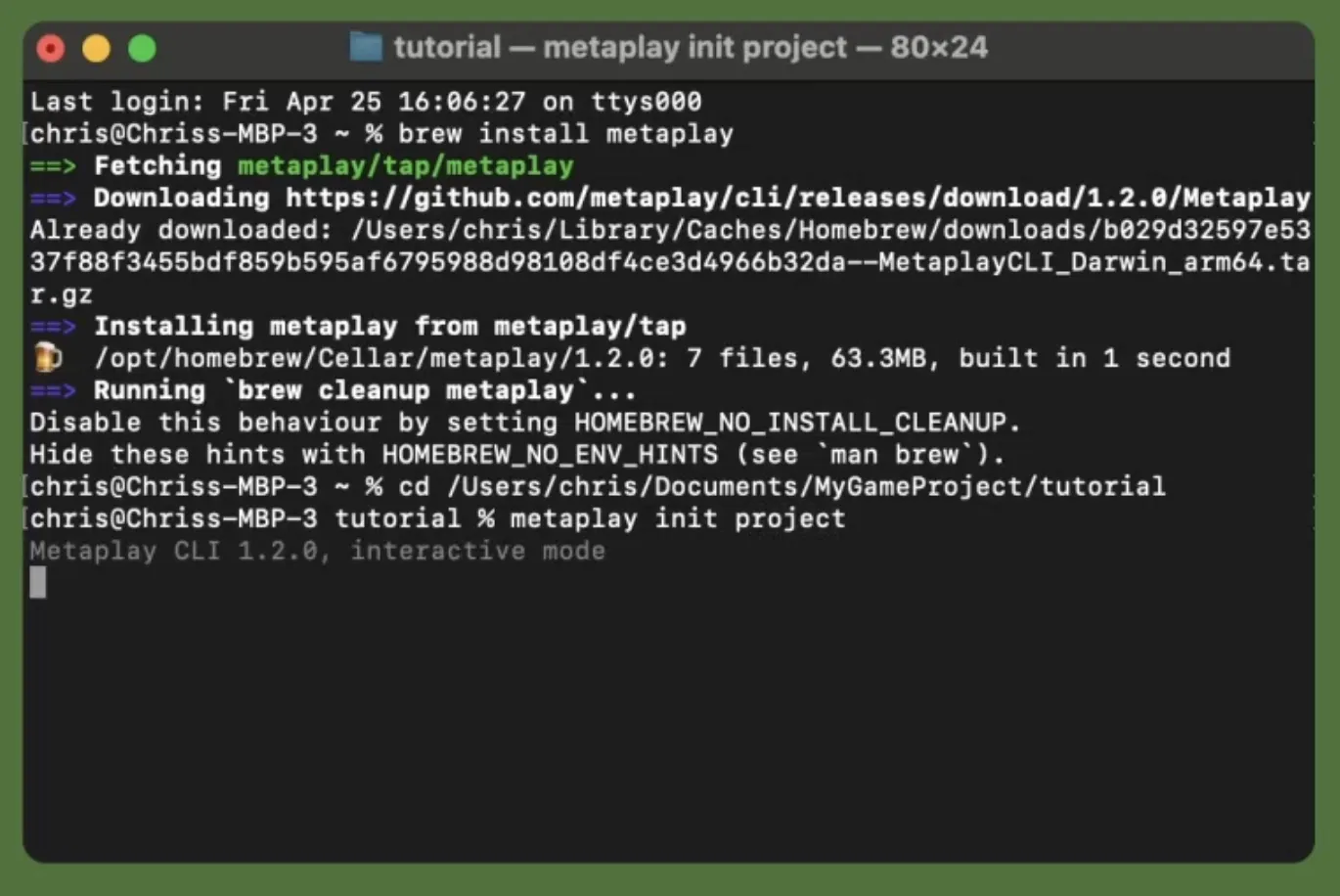
The CLI will ask you to choose a Metaplay organization and project to link to. These are automatically created when you sign up to the portal — you can use the defaults or create new ones.

The CLI downloads the Metaplay SDK, generates your project configuration, and integrates everything into your Unity project. Go back to Unity to verify the Metaplay package has been added successfully.
How to Run a Local Metaplay Game Server
With the SDK integrated, you can spin up a local game server with a single command:
metaplay dev server
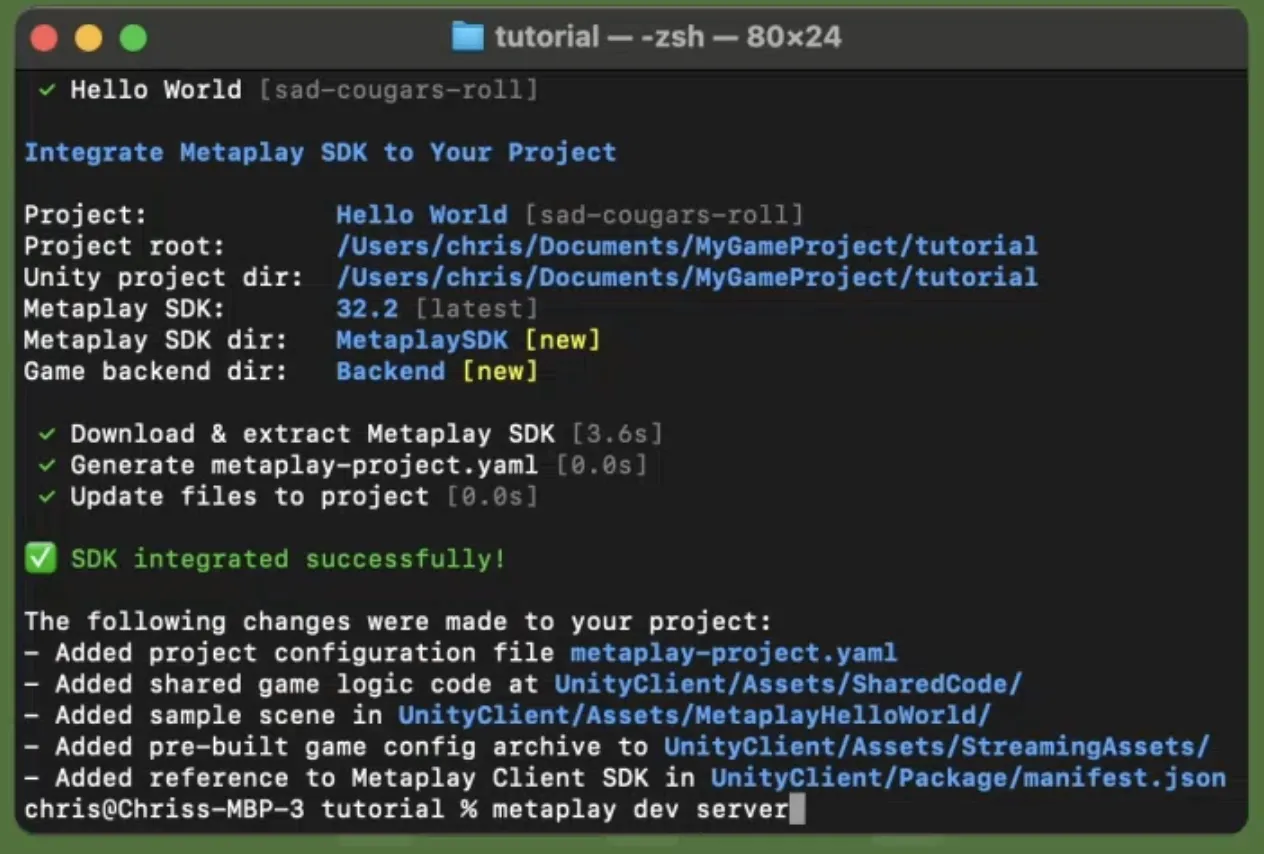
The server starts locally — no Docker, no database setup, no cloud services required. This is a full Metaplay game server running on your machine, identical to what runs in production.
How to Connect Unity to Your Local Server
To connect your Unity game to the local server, enable offline mode by selecting localhost from Environments in the Metaplay top menu within Unity.

Your game will now communicate directly with your local Metaplay server.
How to Use the Metaplay LiveOps Dashboard
With the local server running, open the Metaplay LiveOps Dashboard in your browser at http://localhost:5550.
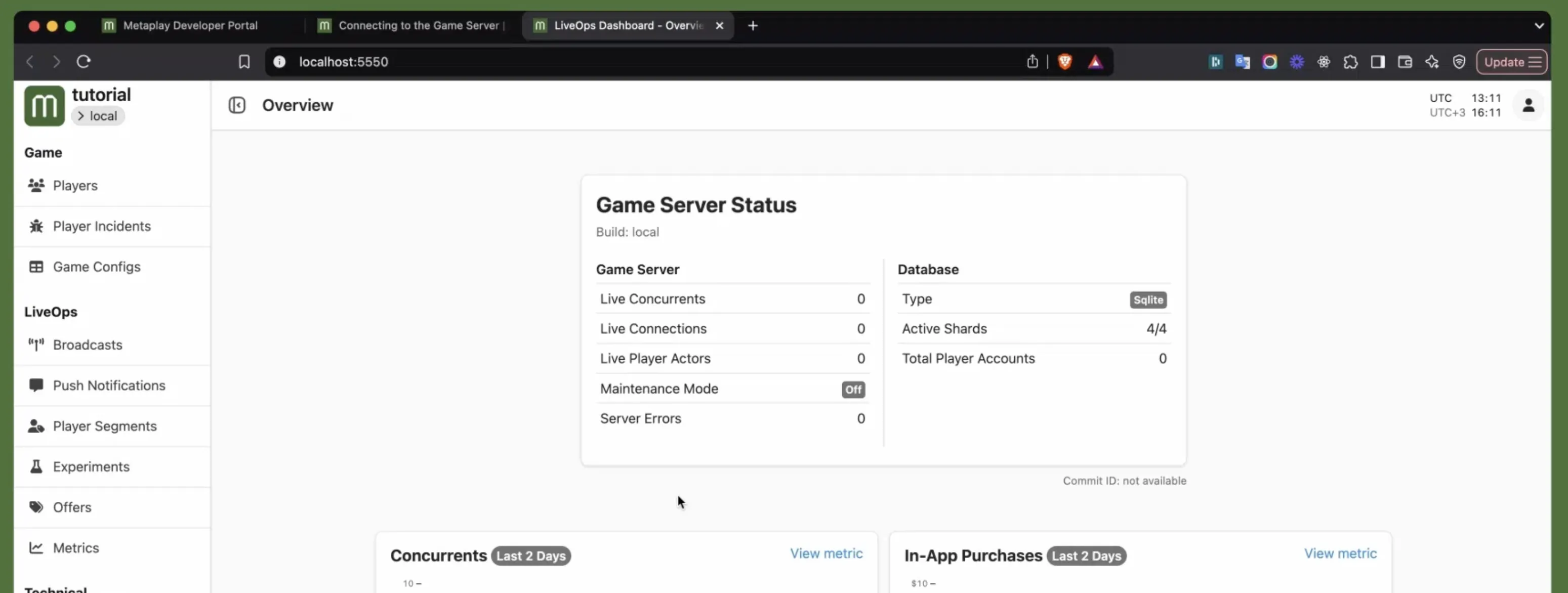
The LiveOps Dashboard is where you manage your game in production — but it works identically in local development. From here you can:
- Inspect and manage player accounts
- Configure game settings with over-the-air updates
- Set up A/B experiments and player segments
- Schedule in-game events and offers
- Monitor server health and player activity
How to Test with Simulated Players Using BotClient
To simulate real players interacting with your game, open a new terminal in your project directory and run:
metaplay dev botclient
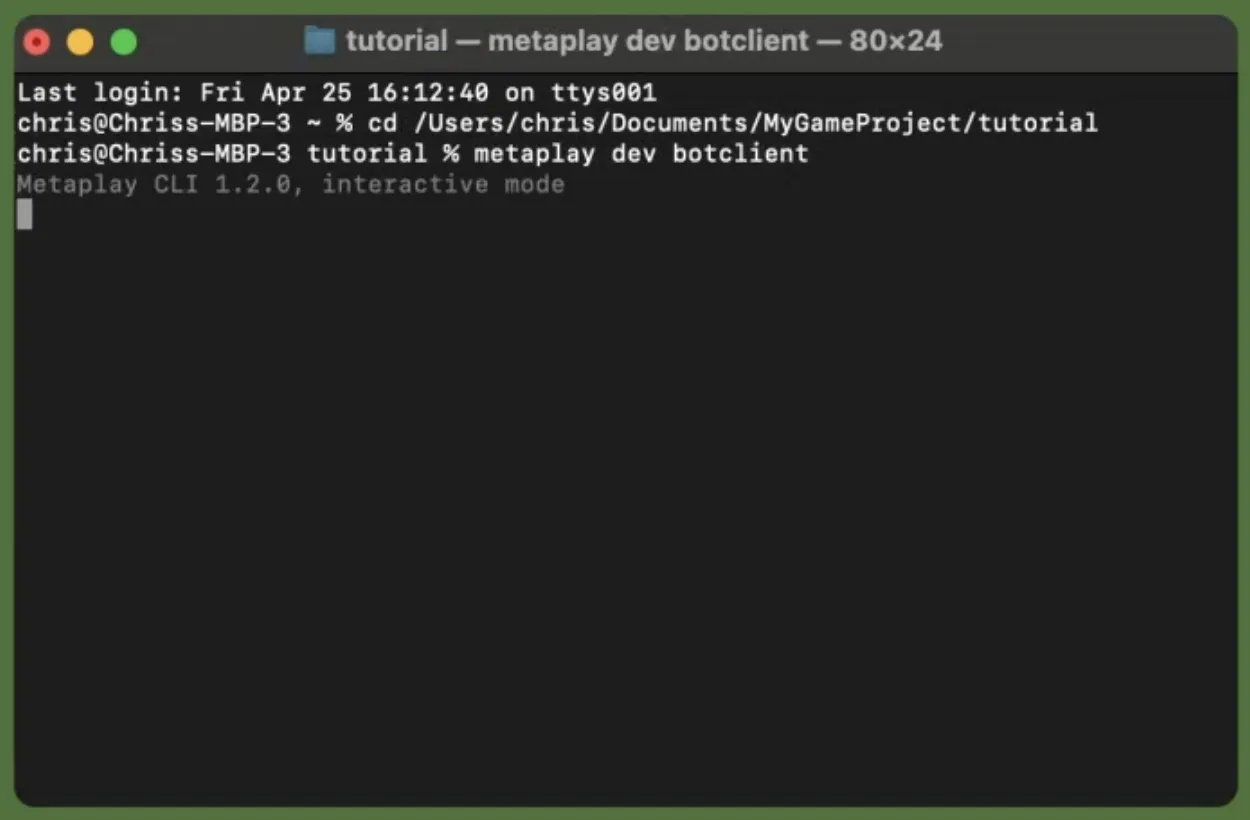
The BotClient sends simulated players to your local server. You'll see them appear in the LiveOps Dashboard immediately.
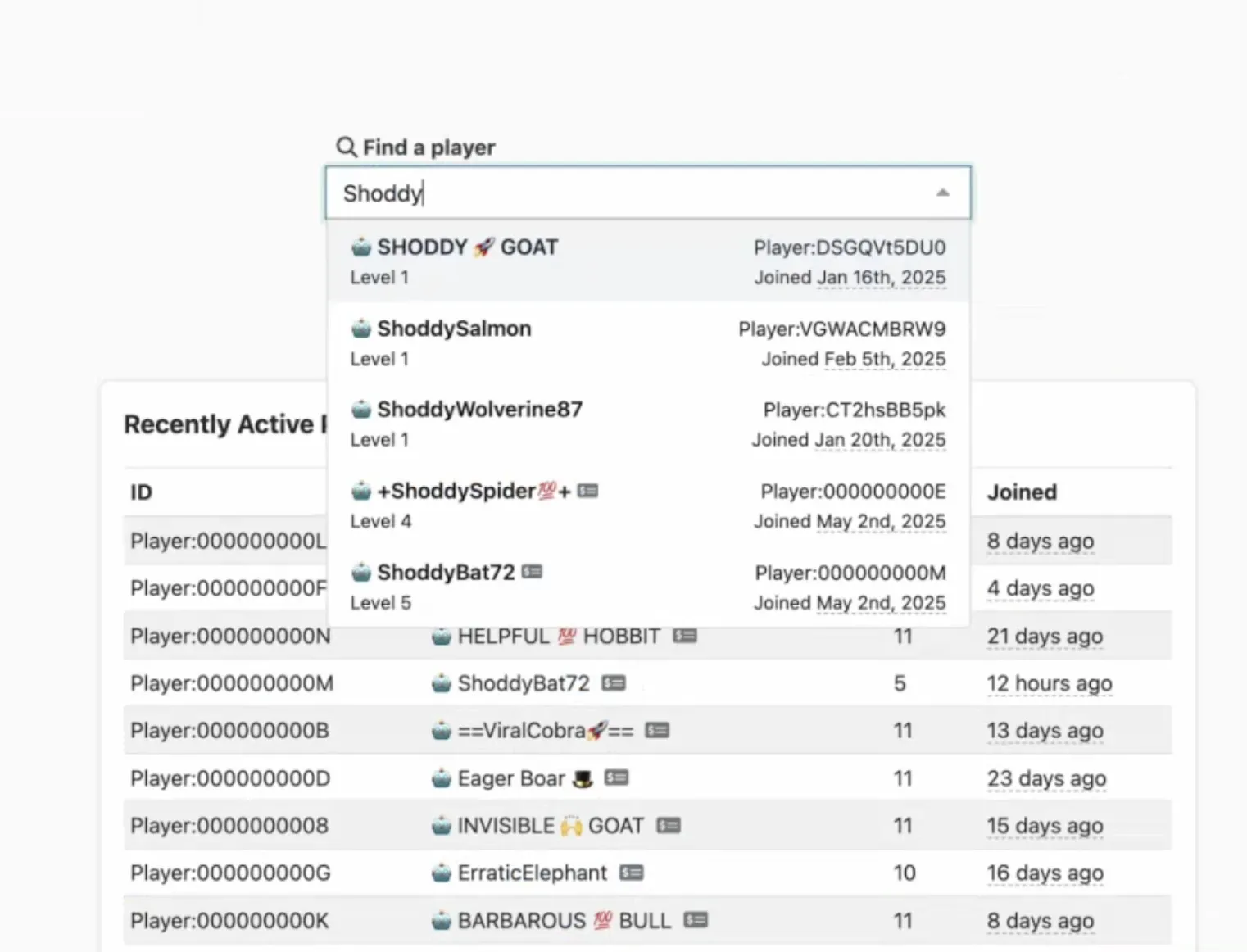
This is an excellent way to test how your game handles multiple concurrent players, validate your game logic, and get a feel for the LiveOps experience before deploying to the cloud.
What to Do Next
Now that you're running locally, you can:
- Follow the Getting Started guide to build your first server-authoritative features
- Explore how Metaplay handles data persistence and game configs
- Try the Wordle tutorial for a hands-on introduction to shared game logic
- When you're ready to deploy to the cloud, upgrade to a paid plan from the Metaplay Portal — plans start at €195/month
FAQ
Does Metaplay work on Windows or Linux?
The Metaplay CLI currently requires macOS with Homebrew. Windows and Linux support is on the roadmap. The SDK itself (C# game server and Unity client) works on any platform that supports .NET and Unity.
Does running a Metaplay local server require Docker or a database?
No. The local Metaplay server runs as a standard .NET application — just metaplay dev server or dotnet run. No containers or database installations needed.
Can I use Metaplay with an existing Unity project?
Yes. The metaplay init project command integrates the SDK into any existing Unity project without disrupting your current setup.
How do I update the Metaplay SDK and CLI?
Run brew upgrade metaplay to update the CLI, then use the CLI to update your project's SDK version.
Is there a DAU or player limit on the Free plan?
The Free plan has no artificial limits for local development. You can run as many bot players as your machine can handle. DAU limits only apply when you deploy to the Metaplay Cloud.
Where can I get support for Metaplay SDK integration?
Join the Metaplay Discord for community support, or check the documentation for detailed guides and API references.


![Announcing Metaplay Starter [Updated for 2026]](/images/blog/announcing-metaplay-starter-featured.webp)